Test Runs are one-time executions of test cases designed to validate functionality and quality.
Managing Test Runs helps streamline test execution and keep track of testing progress and results. Use the following guide to effectively organize and manage your Test Runs.
Learn what is a Test Run here.
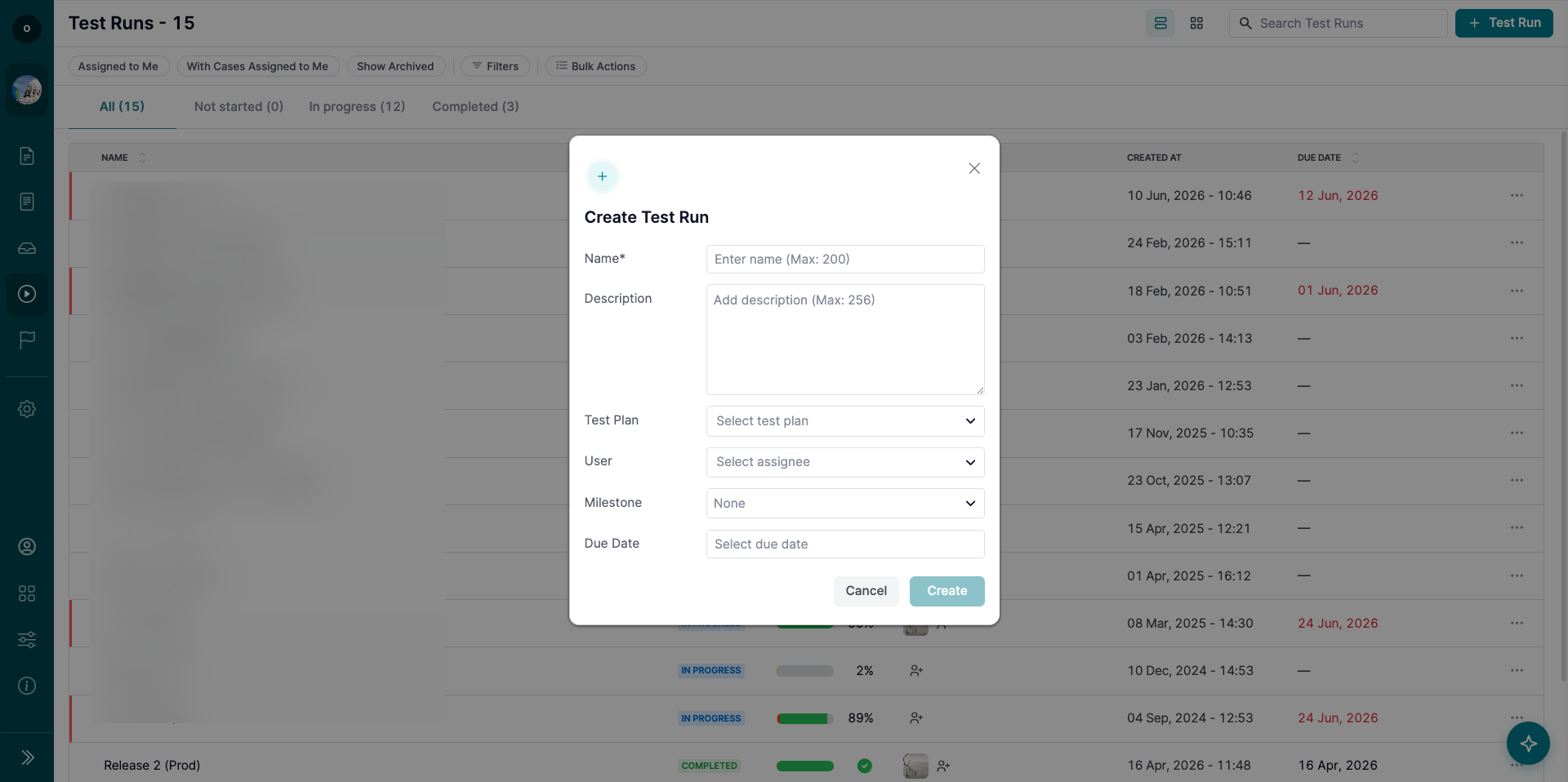
1. Create a Test Run
- Go to the Test Runs page.
- Click the ‘+ Test Run’ button to add a new Test Run.
Note: Test Runs can be created either based on pre-created Test Plans or by adding test cases directly into an empty Test Run.
Learn more about creating a Test Run here.
2. Sort Test Runs
Sort Test Runs by Name for better organization.
3. Filter Test Runs
Apply filters to focus on specific Test Runs based on:
- Status: Filter by Not Started, In Progress, or Completed Test Runs.
- Assigned to You: View Test Runs where you are the assigned tester.
- Cases Within Runs Assigned to You: Focus on specific test cases assigned to you within a Test Run.

4. View Test Run Due Dates
The Test Runs list can show additional context for each Test Run.
Use the list to view:
- Due Date: Shows the Test Run deadline, if one is set.
If a Test Run misses its due date, the due date is highlighted.
Note: A Test Run is missed when its due date has passed and the Test Run is not Completed.
If the due date is inherited from a milestone, the Test Run will show the milestone as the source.
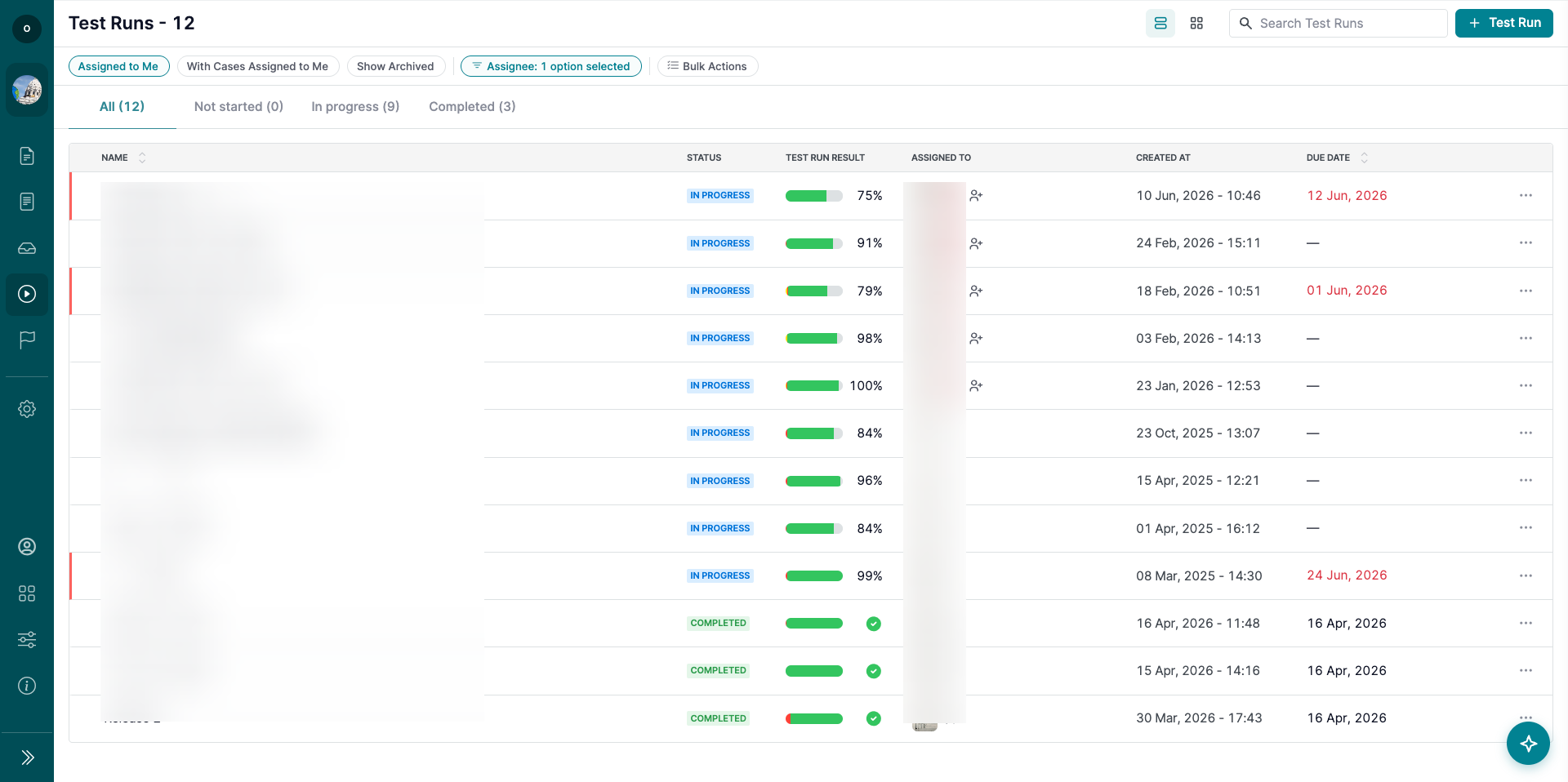
5. Manage Test Runs
- Duplicate: Create a copy of an existing Test Run for reuse.
- Archive and Restore:
- Archive Test Runs to temporarily remove them from active use.
- Restore archived Test Runs when needed.
- Delete: Permanently delete Test Runs that are no longer required.
Note: Deleted Test Runs cannot be restored.

6. Export Test Run Reports
Generate and export reports from completed Test Runs in the following formats:
- CSV
- Online View
Learn more about reports here.
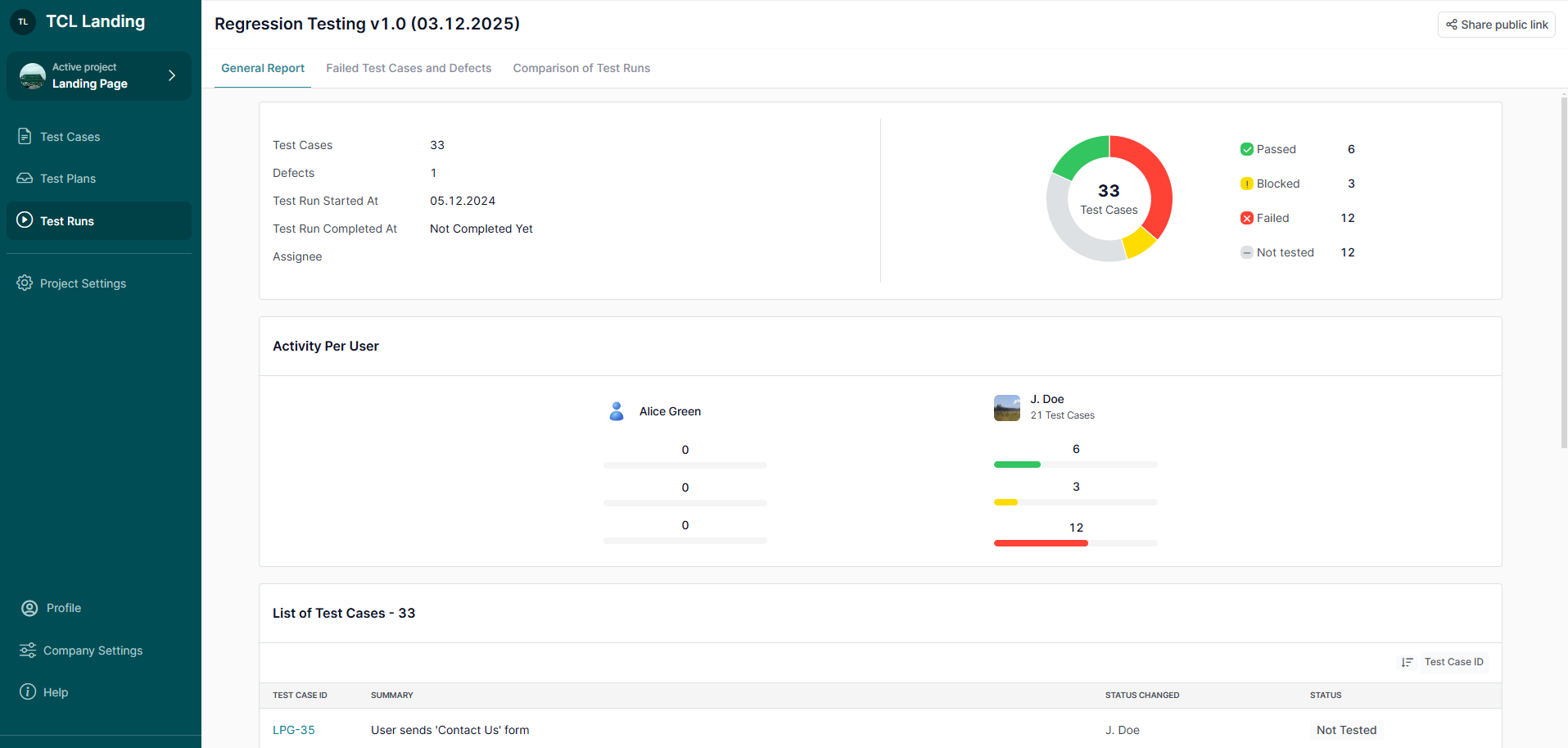
7. Switch Test Runs List View Modes
- Line View: A standard list format for Test Runs.

- Grid View: Displays pie charts for visual tracking of progress and completion status.

8. Use Bulk Actions
Bulk Actions help you manage multiple Test Runs at once.
To use Bulk Actions:
- Click 'Bulk Actions' to see checkboxes next to each Test Run
- Select one or more Test Runs using the checkboxes in the list.
- The ‘Bulk Actions’ menu will appear.
- Choose the action you need.
Available Bulk Actions for Test Runs:
- Archive
- Unarchive
- Delete
- Export to CSV
- Export to PDF
- Duplicate
- Assign Users to Test Run
Note: You can select up to 1000 Test Runs in one bulk action.
What’s Next?
Efficiently managing Test Runs ensures a smooth testing workflow and accurate reporting of results. For additional help, check related guides or contact support—we’re happy to assist!