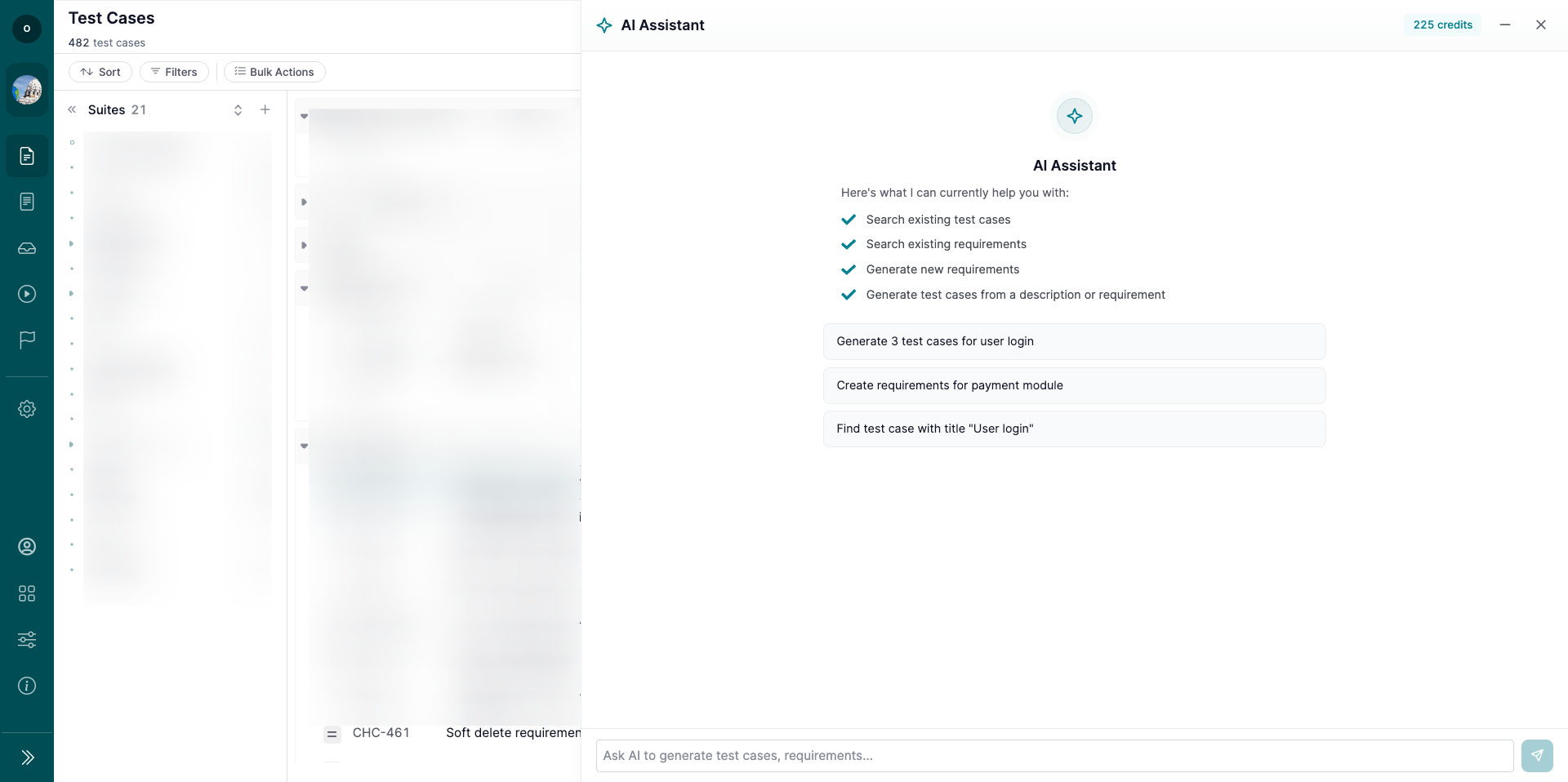
The AI Assistant helps you create and review QA artifacts inside your project using natural language.
In the current version, you can use the AI Assistant to:
- Create Test Cases from scratch.
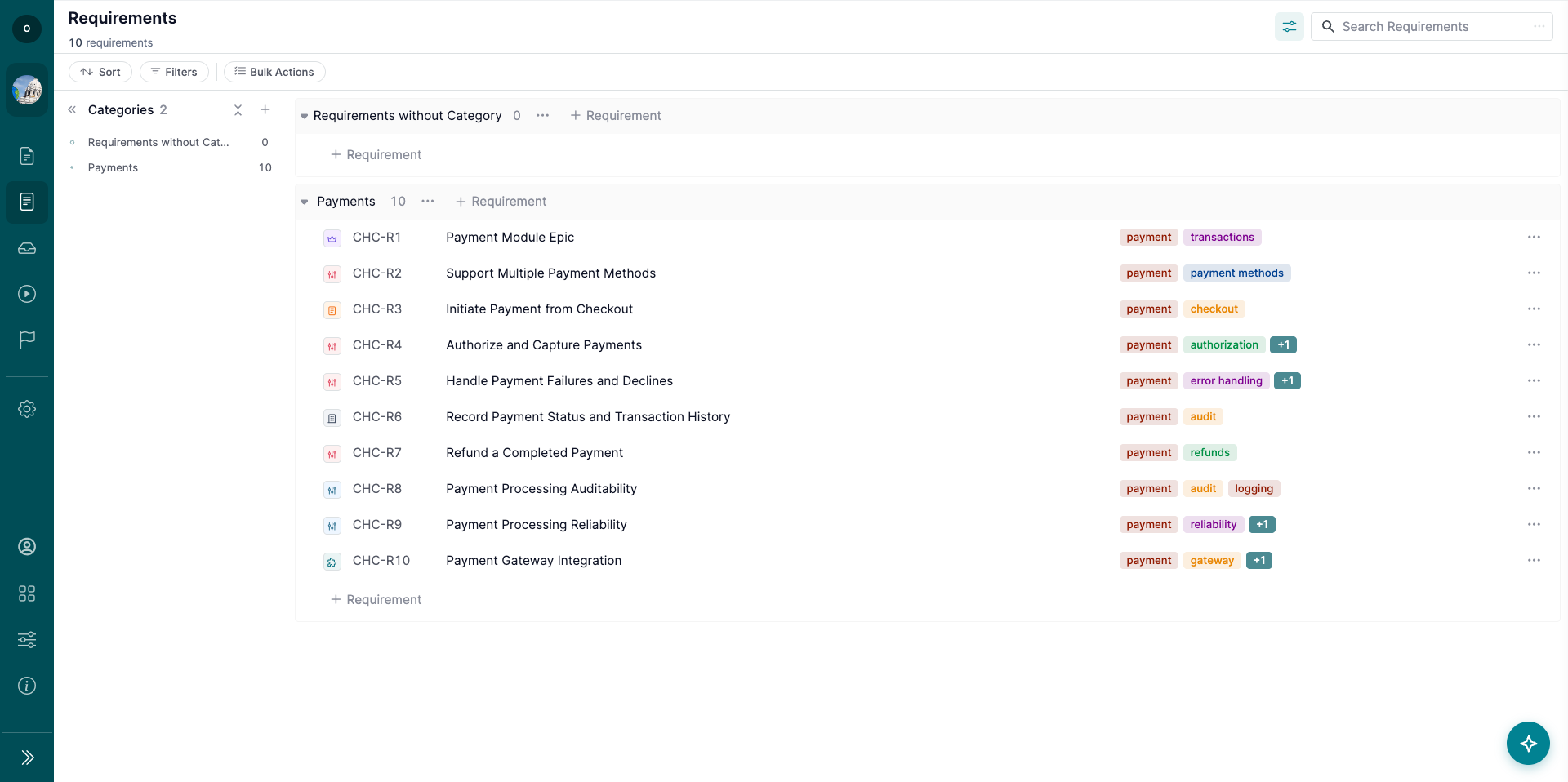
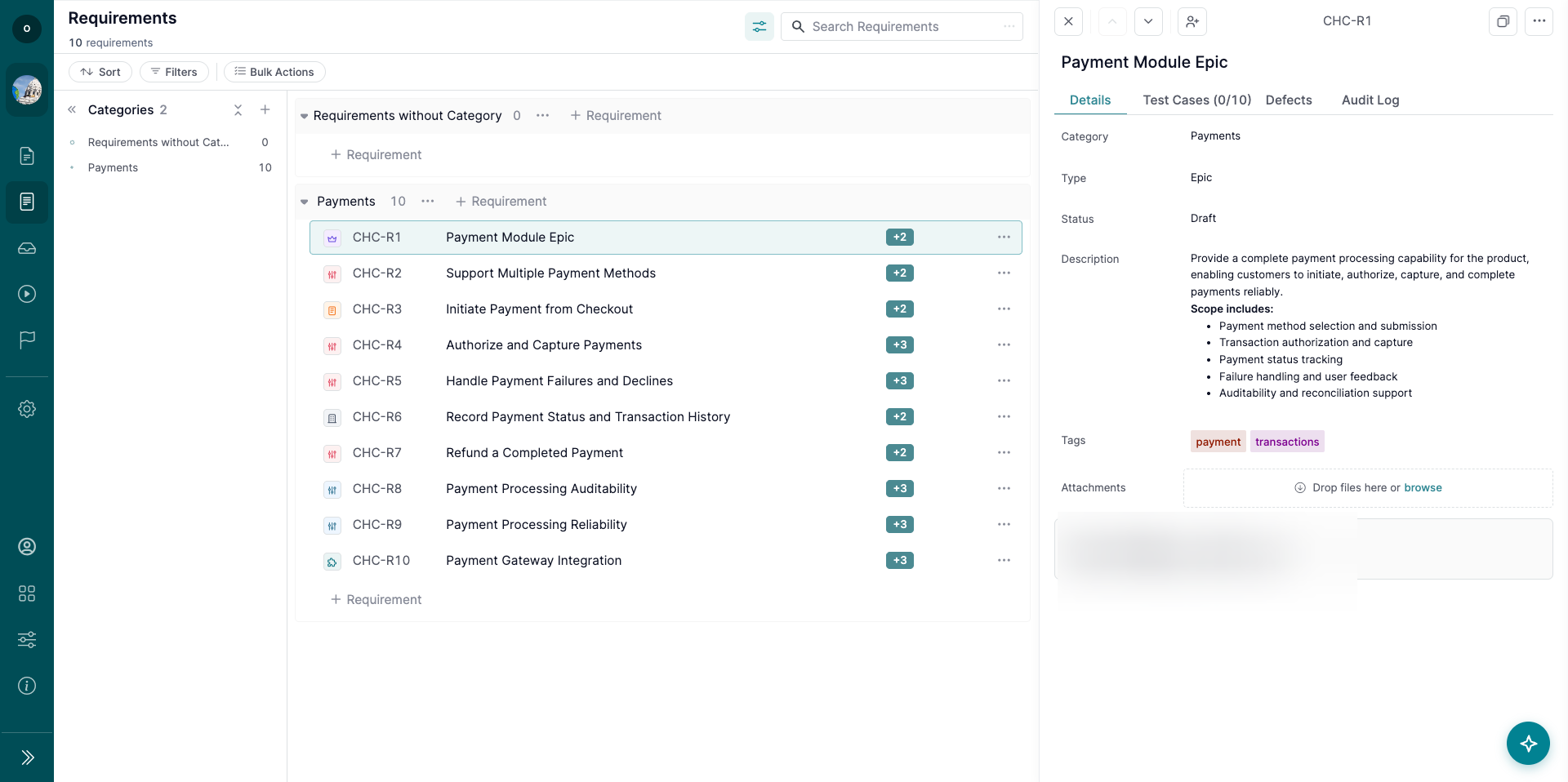
- Create Requirements from scratch.
- Create Test Cases based on existing Requirements.
- Ask questions about existing Test Cases and Requirements.
The AI Assistant works only with the project you currently have open.
1. Open the AI Assistant
To open the AI Assistant:
- Open a project.
- Click the AI Assistant button.
- Enter your request in the chat panel.
You can describe what you want to create or ask a question about existing Test Cases and Requirements.
Note: The AI Assistant uses the current project context only.
2. Create Test Cases from Scratch
You can ask the AI Assistant to create new Test Cases by describing the feature, flow, or scenario you want to cover.
For example, you can provide:
- Feature name.
- User flow.
- Preconditions.
- Expected behavior.
- Edge cases.
- Priority or type, if needed.
The AI Assistant will prepare Test Cases based on your request and show a preview before creating them.
Review the preview carefully, then confirm the action if everything looks correct.
3. Create Requirements from Scratch
You can ask the AI Assistant to create Requirements by describing the product functionality or business need.
For example, you can provide:
- Feature description.
- User goal.
- Business rule.
- Expected behavior.
- Constraints or acceptance conditions.
The AI Assistant will prepare Requirements based on your request and show them for review before saving.
Note: You should review generated Requirements before confirming creation.
4. Create Test Cases from Requirements
You can generate Test Cases from existing Requirements.
To do this:
- Ask the AI Assistant to create Test Cases from one or more Requirements.
- Specify which Requirement or group of Requirements should be used.
- Add any extra testing focus if needed, such as edge cases, negative scenarios, or regression coverage.
- Review the generated Test Cases.
- Confirm creation.
The generated Test Cases will be based on the selected Requirements.
Note: This helps keep test coverage connected to product scope.
5. Ask Questions About Test Cases
You can ask the AI Assistant for information about existing Test Cases.
For example, you can ask it to:
- Find Test Cases related to a feature.
- Summarize Test Cases for a specific area.
- Identify Test Cases with specific tags, types, or priorities.
- Explain what a group of Test Cases covers.
The AI Assistant will return information based on the Test Cases available in the current project.
6. Ask Questions About Requirements
You can also ask the AI Assistant for information about Requirements.
For example, you can ask it to:
- Find Requirements by title, status, type, or tag.
- Summarize Requirements for a feature.
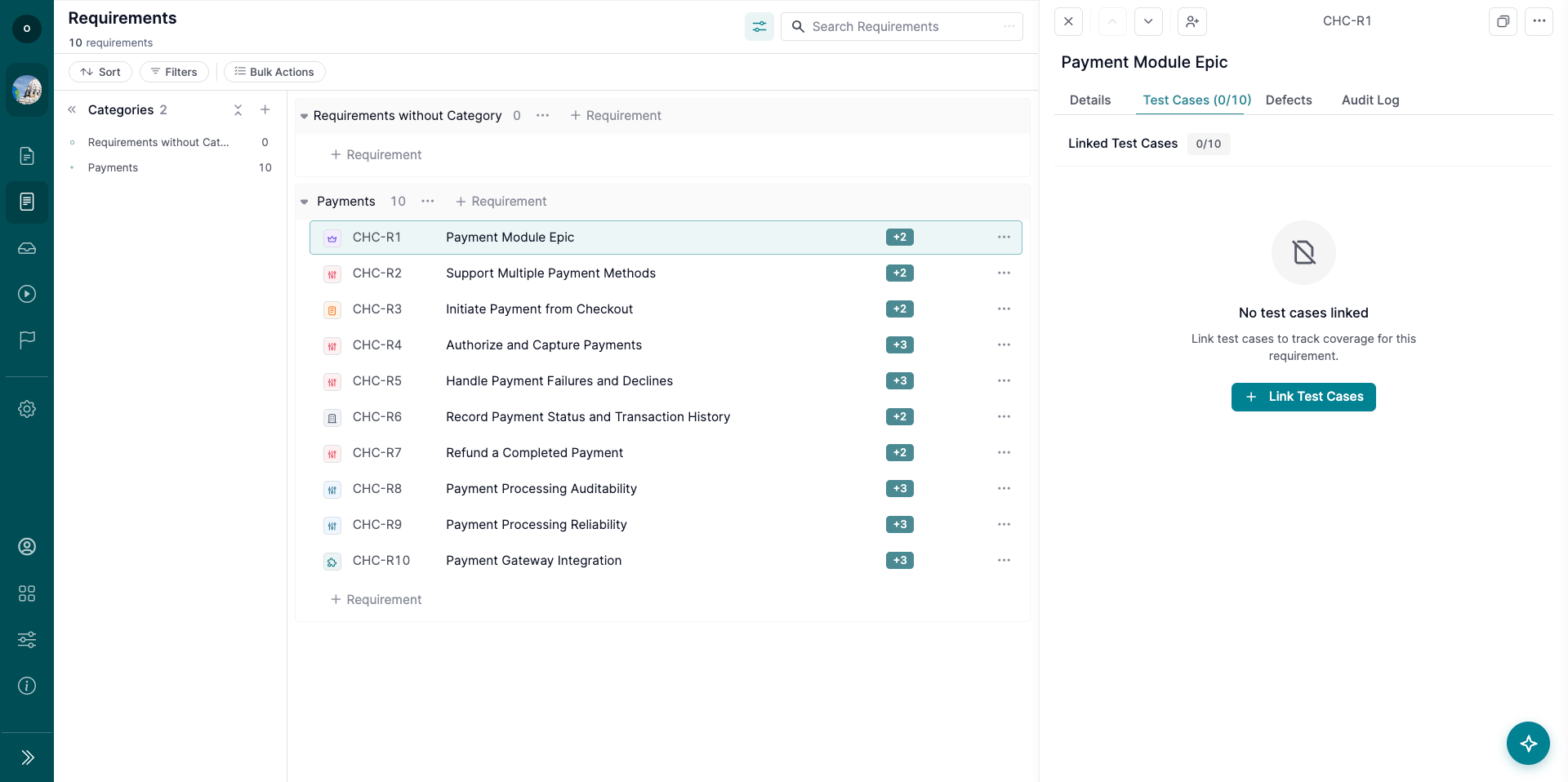
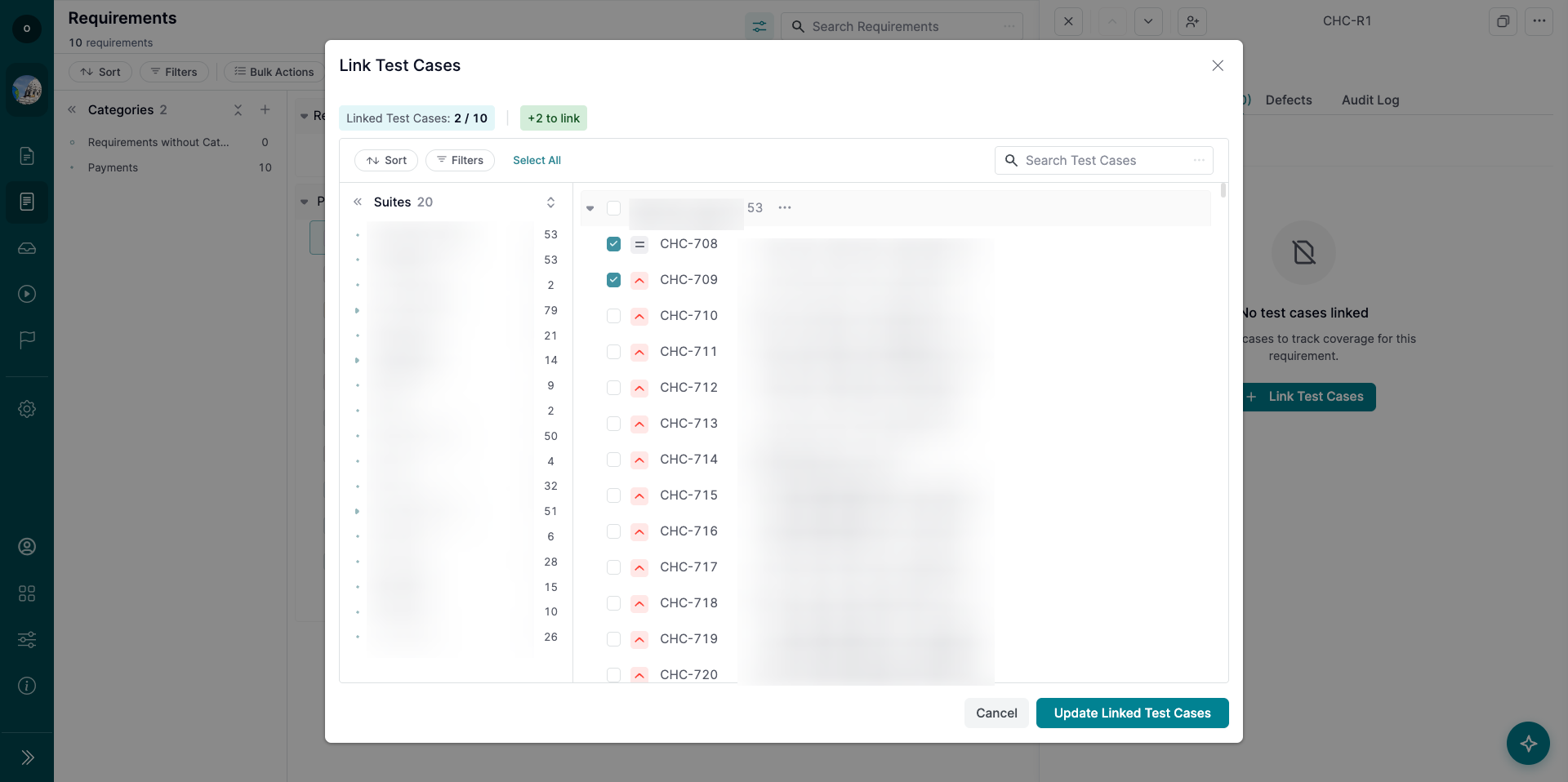
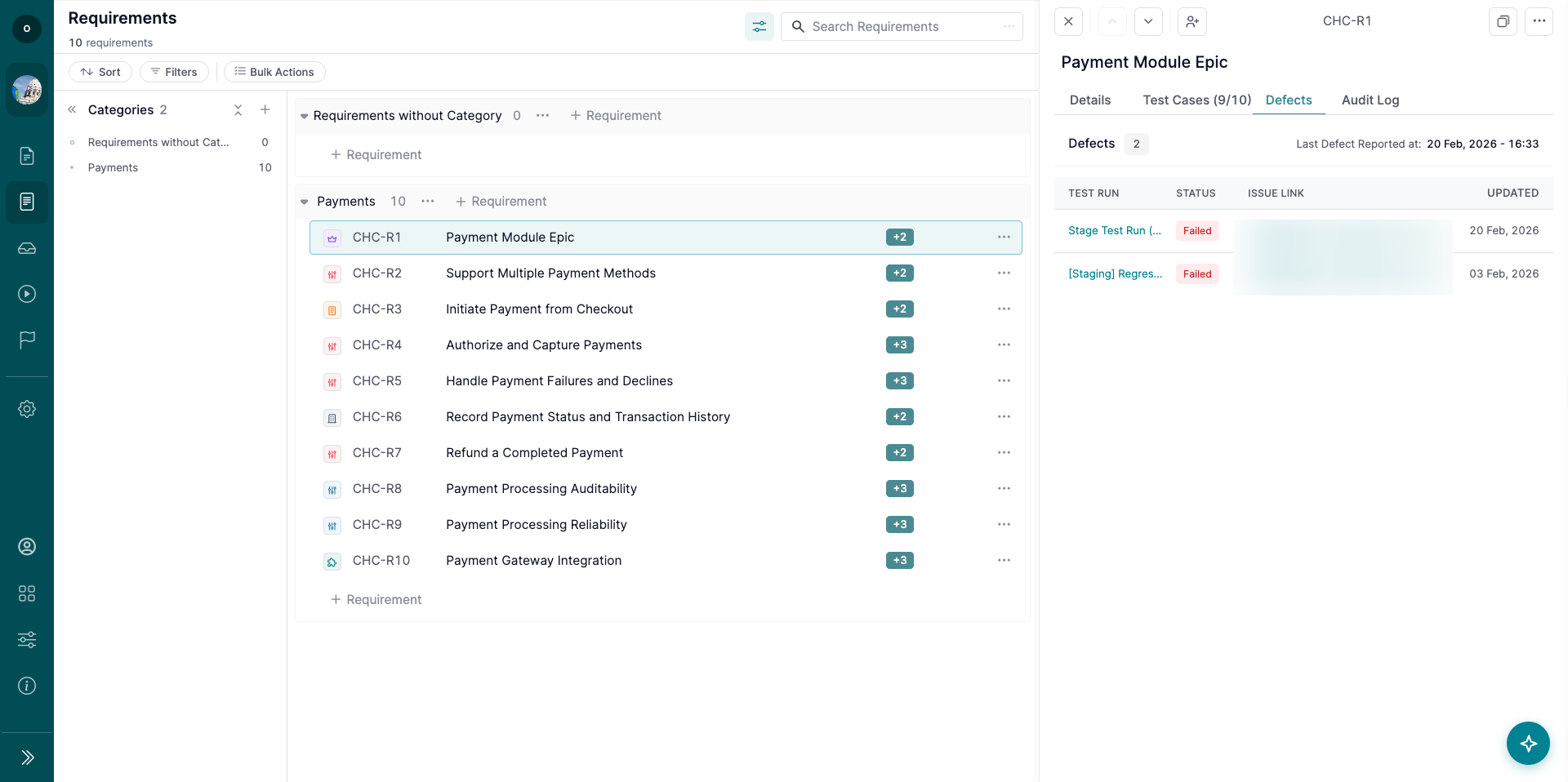
- Identify Requirements without related Test Cases.
- Explain what a Requirement covers.
Use this to quickly understand product scope and test coverage.
7. Review Before Saving
When the AI Assistant creates Test Cases or Requirements, review the generated content before confirming.
Check that:
- Titles are clear.
- Steps and expected results are accurate.
- Requirements match the intended business logic.
- Generated Test Cases cover the right scenarios.
Note: The AI Assistant helps speed up drafting, but final review stays with the user.
What’s Next?
Use the AI Assistant to draft Test Cases and Requirements faster, or to get quick information about existing project coverage. For additional help, check related guides or contact support—we’re here to help!